
Fix your inbox: Design engineer your own newsletter digest email
Claude + Google Scripts + Firebase + Gmail
Are you willing to admit your inbox has become unmanageable? Here’s how I turned mine into a single daily digest of newsletters. And you can too. Here’s what it looks like:
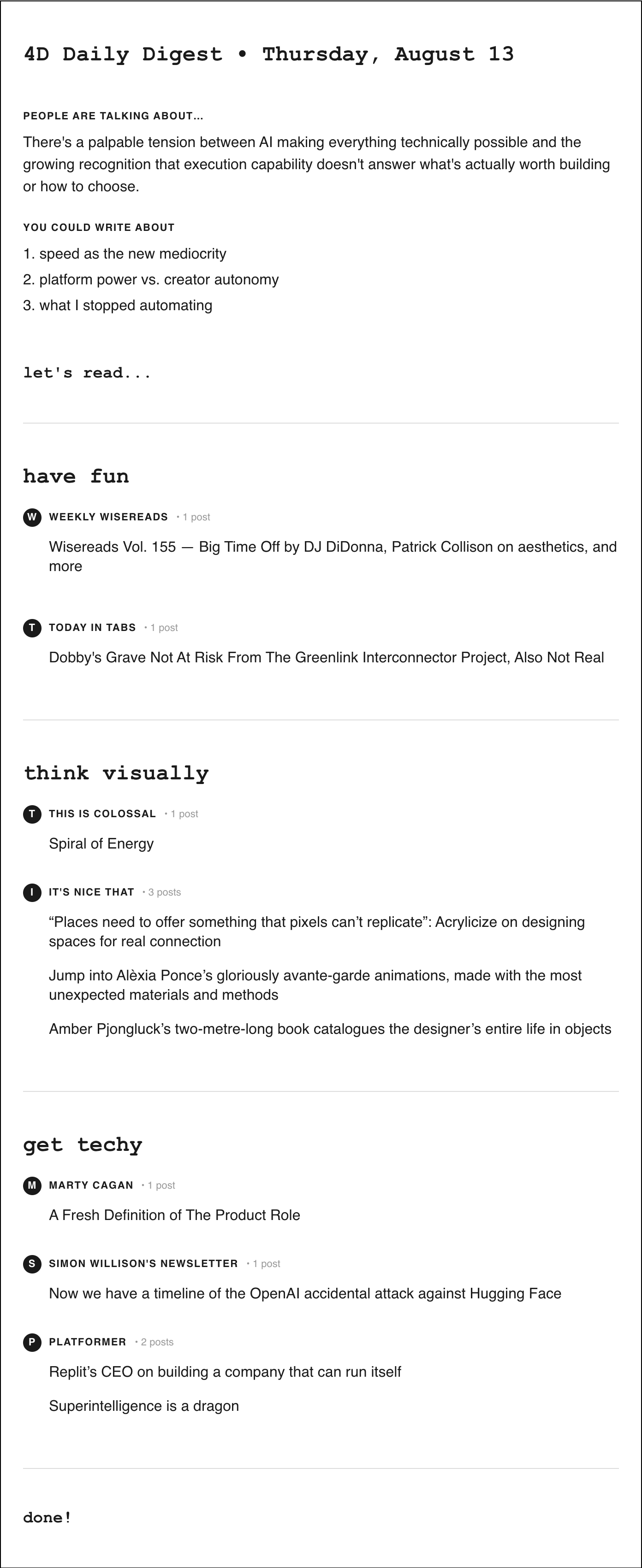
(Yes, I could turn this into a startup, meco.app is already doing that, but let’s build our own!)
Overview
What you’ll need
separate Gmail account for newsletters (e.g. name.reads@gmail.com)
Claude (or other LLM) to write or edit the scripts
script.google.com (free) to hold/run the two scripts:
firebase.com database (free) to store/serve the ingested emails
optional: Anthropic API account (paid, by usage) to include a summary at the top
How it works
Newsletter arrives in new Gmail → filter applies category label
Input script runs every 30 min → saves posts to Firebase with category
Output script runs daily → reads Firebase → calls Claude to write summary → sends digest email
Sound good?
Simple Tutorial
Start a new Claude session and tell it:
I want to set up a personal newsletter digest called 4D Daily Digest. I have two Google Apps Script files (input.gs and output.gs) that I’ll paste in when you ask for them.
The system works like this: input.gs runs every 30 minutes as a Google Apps Script in a dedicated Gmail account, watches the inbox for newsletters, and saves them to a Firebase Realtime Database. output.gs runs once a day, reads those posts from Firebase, (optionally) calls the Claude API to write a short summary of what’s trending across all my newsletters, and emails me a digest.
Please help me: 1. Set up a Firebase project and get the database URL 2. Create a Google Apps Script project called Digest with two files, paste in the scripts, and fill in my Firebase URL and Gmail address 3. Set up Gmail labels for my newsletter categories and filters to apply them automatically 4. Authorize and test the scripts 5. Set up triggers to run them automatically
Here are the two scripts to paste when it asks for them:
Step-by-Step Tutorial
Want more details?
Step 1: Create a dedicated Gmail account
Create a new Gmail account just for newsletters — this keeps your personal inbox clean and gives the scripts a dedicated inbox to watch.
Emails appear in the “uncategorized” section of the digest until you get around to creating the categorization filters (see step 3).
Step 2: Set up Gmail categories
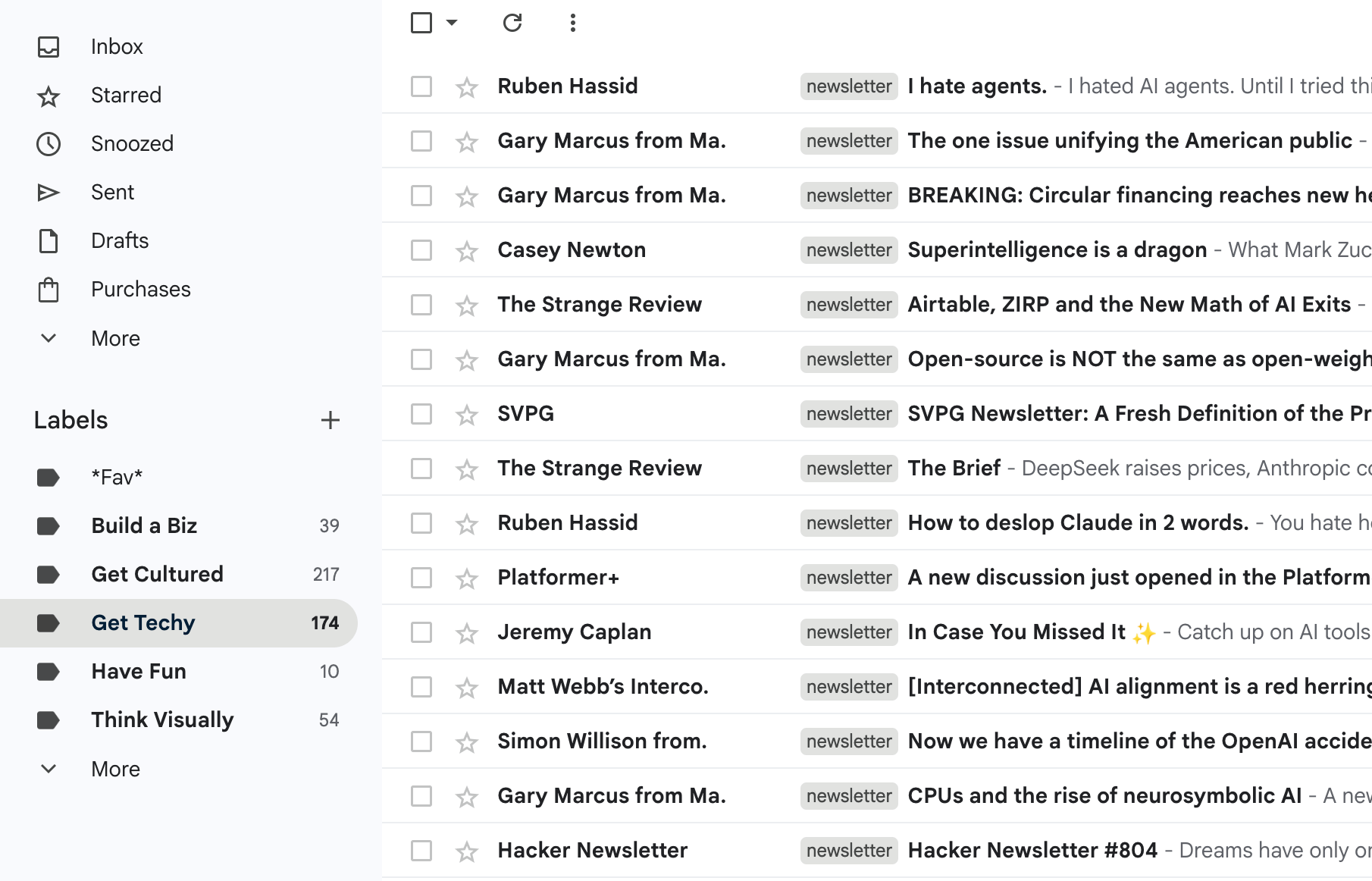
In your newsletter Gmail account, create labels for each category you want. I like to do them by purpose, for example:
Get Techy
Build a Biz
Get Cultured
Have Fun
Then, for each newsletter you subscribe to, create a filter that applies the right label:
In Gmail’s search, type from:domain.com (e.g. from:platformer.com) and hit enter
Click the filters/options button at the right edge of the search bar
Click Create filter
Check Apply the label and choose the category label
Check Skip the Inbox (Archive it) if you want to keep this inbox clear
Click Create filter
Bonus: You can quit here, and still have a nice RSS-style browseable inbox:
Want to keep going and get that digest?
Step 3: Set up the database
Firebase is a free database to store and serve the emails.
Create a new project, name it Digest or whatever (on the following screens, you can enable AI and analytics if you want, but it’s not required)
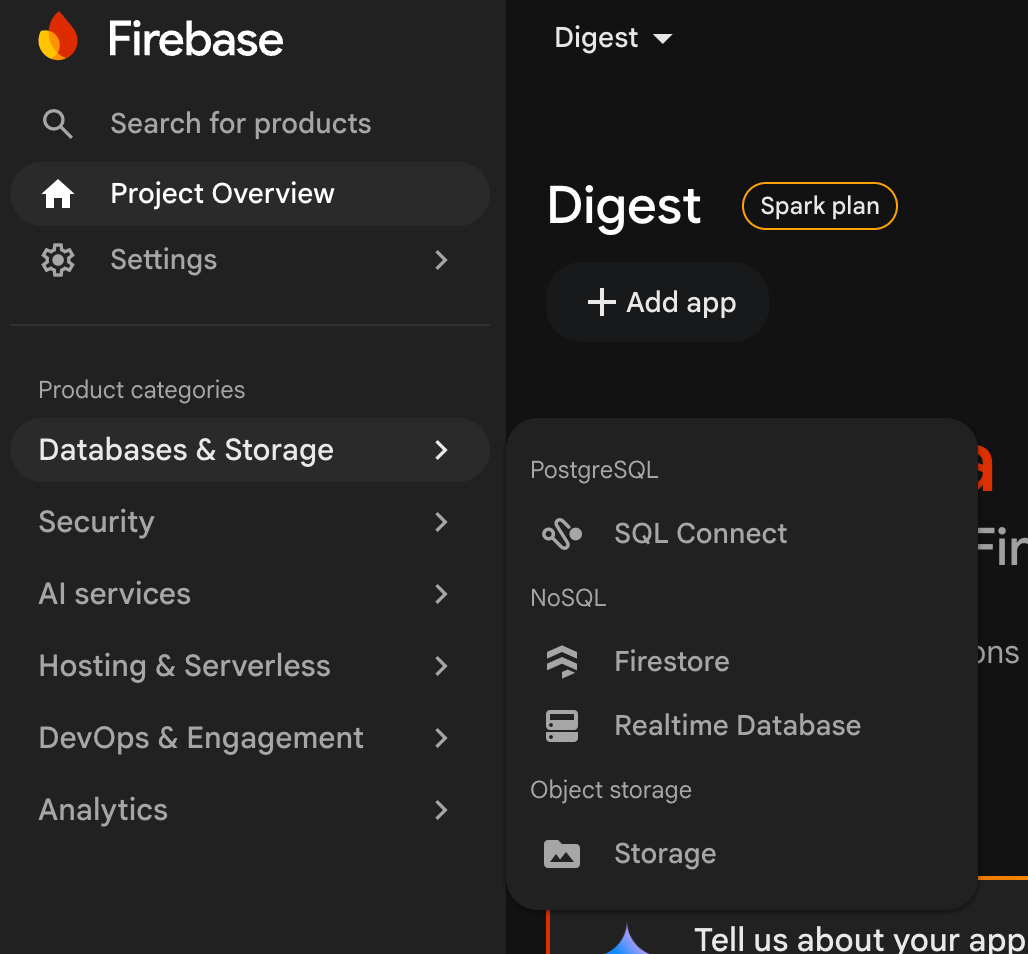
In the left nav, go to Databases → Realtime Database
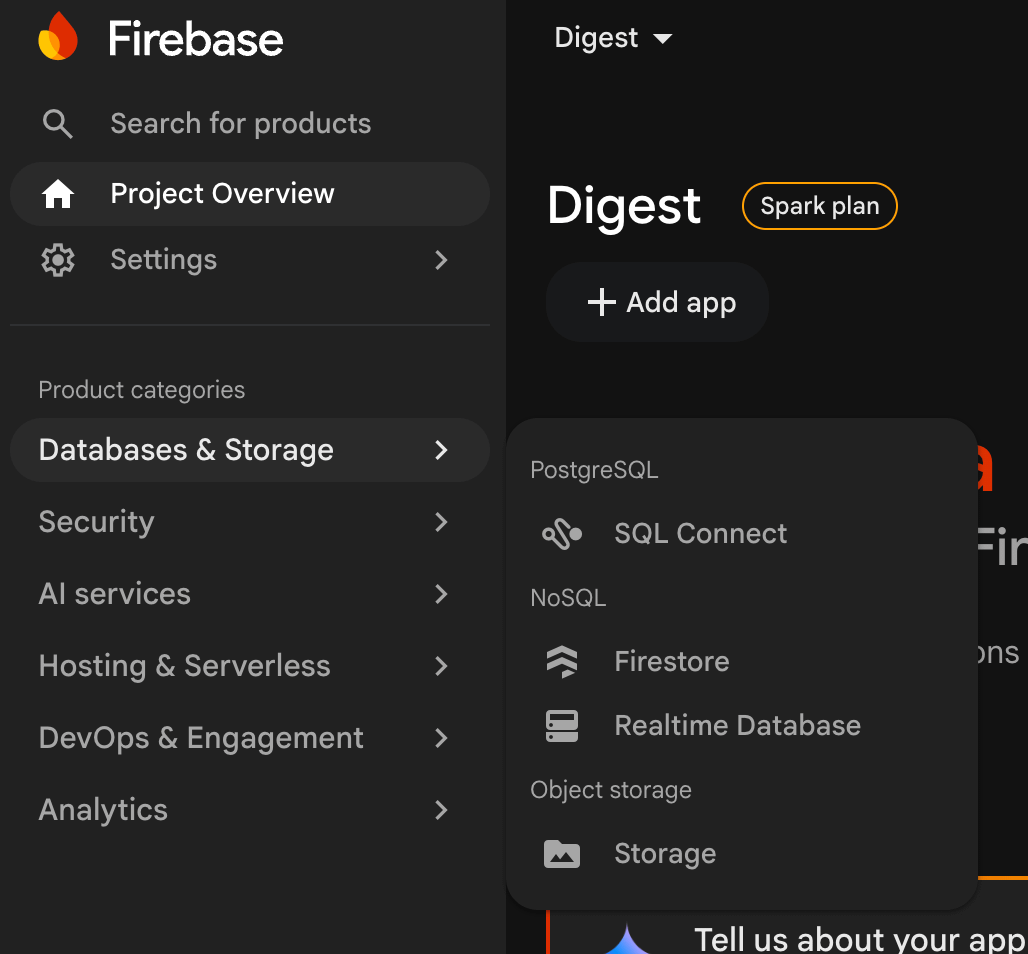
Click Create Database, and then any location, and then start in test mode
Your database will open. Click over to the Rules tab, and paste the following so the scripts can access the database (NOTE: this is open access, but for personal use that’s fine):
{
  "rules": {
    ".read": true,
    ".write": true
  }
}
Go back to the Data tab. Notice your database URL at the top (it looks like https://your-project-default-rtdb.firebaseio.com), you’ll need that in a minute
Step 4: Set up the Digest scripts
Now we just need to paste things into Google Apps Script, a simple place to write and run JavaScript from the cloud.
Log into script.google.com as your newsletter Gmail account
Create a new project, call it Digest
Set up the input script
You’ll see a default file called
Code.gs— rename it toinput.gsPaste in the contents of
input.gsUpdate
FIREBASE_URL→ paste your Firebase database URL
Set up the output script
Add a second file: click + next to Files → Script → name it
output.gsPaste in the contents of
output.gsand update these values at the top:FEEDER_BASE_URL→ your Firebase database URLBRIEFING_FROM→ your newsletter Gmail addressBRIEFING_TO→ your personal email address
Run the script for the first time to authorize it:
In
input.gs, selectprocessNewEmailsfrom the function dropdown at the top of the editorClick the Run button (▶)
A popup will ask you to review permissions — click Review permissions, choose your newsletter Gmail account, then click Allow
Check View → Logs to confirm it ran without errors
Schedule the digest
Now just set up two triggers to run the scripts automatically:
Click the clock icon (Triggers) in the left sidebar
Click + Add Trigger (bottom right) for the input trigger
function:
processNewEmailsTime-driven
Hour timer
Every 30 minutes
Save!
Click + Add Trigger for the second trigger:
function:
sendDailyBriefingsTime-driven
Day timer
your preferred time
Save!
You may be asked to authorize again — click Allow
Step 5 (Optional): Add the summaries
You’ll need an Anthropic API key and some cash in the account. If you skip this, the summaries just won’t appear, the rest of the digest works fine.
Go to console.anthropic.com and create an account
Add a credit card and purchase some credits (~$5 should last months)
Go to API Keys and create a new key
Paste it into
ANTHROPIC_KEYat the top ofoutput.gs
Step 6: Test it
In
output.gs, make sureTEST_MODE = trueRun
sendDailyBriefingsmanuallyMake sure the function dropdown says
sendDailyBriefingsClick the
RunbuttonCheck your inbox: everything looks good? If not, ask Claude how to revise the scripts to appear how you’d like
Step 7: Ship it!
Set
TEST_MODE = falseand save the scriptYou’ll get the digest tomorrow at your preferred time
Tips
Where do the links go?
To the original article or post on the web. For newsletters that don’t publish a web version, the link goes to the Gmail thread — you’ll need to be logged into your newsletter Gmail account to open those.
Want to change a newsletter’s category?
Go to Settings → See all settings → Filters and Blocked Addresses, find the filter for that sender, click Edit, and change the label it applies.
You can also add or rename categories at any time under Settings → See all settings → Labels.
Want to remove a source?
Just unsubscribe from the newsletter, if it’s not coming to your inbox it won’t be in the digest
Want to pause a source but not unsubscribe?
Set active: false on the feed entry in Firebase
Not seeing a source?
Gmail will occasionally flag the digest as spam. Mark it as not spam once and it should stop
Other questions? Let me know!